
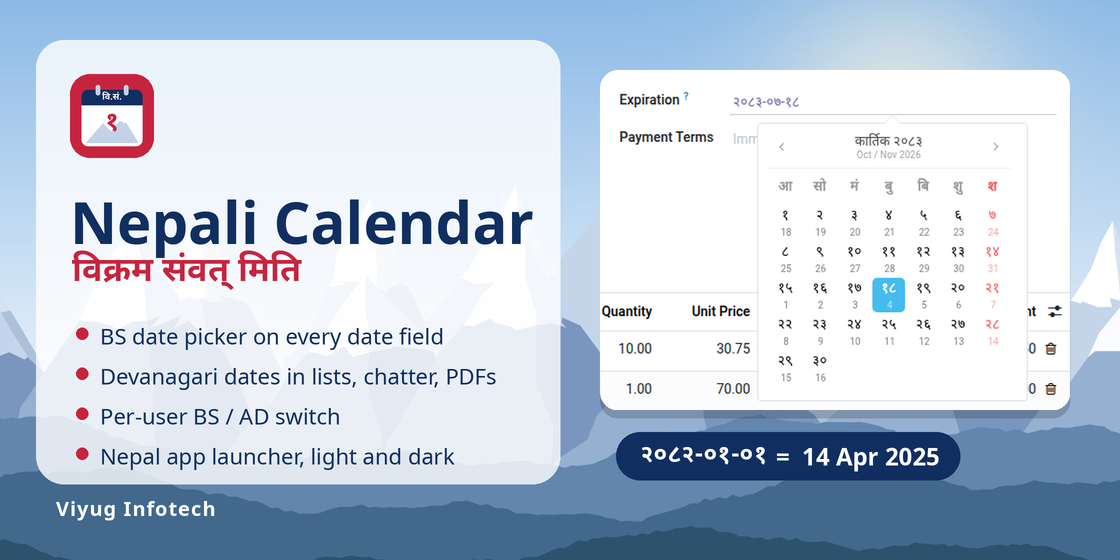
Bikram Sambat dates all over Odoo, and a launcher made for Nepal.
A Nepali date picker on every date field, BS dates with Devanagari digits in lists, forms, chatter and PDF reports, a per-user BS / AD switch and a Nepal app launcher with Himalayan scenery. Odoo keeps storing AD dates.
वि.सं. date pickerPDF reports in BSBS / AD per userNepal launcher
Odoo speaks Gregorian. Your team, customers and tax office speak Bikram Sambat.
Converting every date in your head, or on a website, slows everyone down and causes mistakes on invoices.
Before
- Dates shown as 04/14/2025, never as BS
- An online converter open next to Odoo
- Invoices printed with AD dates only
- A generic, foreign-looking home screen
After
- २०८२-०१-०१ style dates on every screen
- A BS calendar wherever a date is picked
- PDF reports printed with BS dates
- A Nepal launcher with today's BS date
What you get
Nepali date picker everywhere
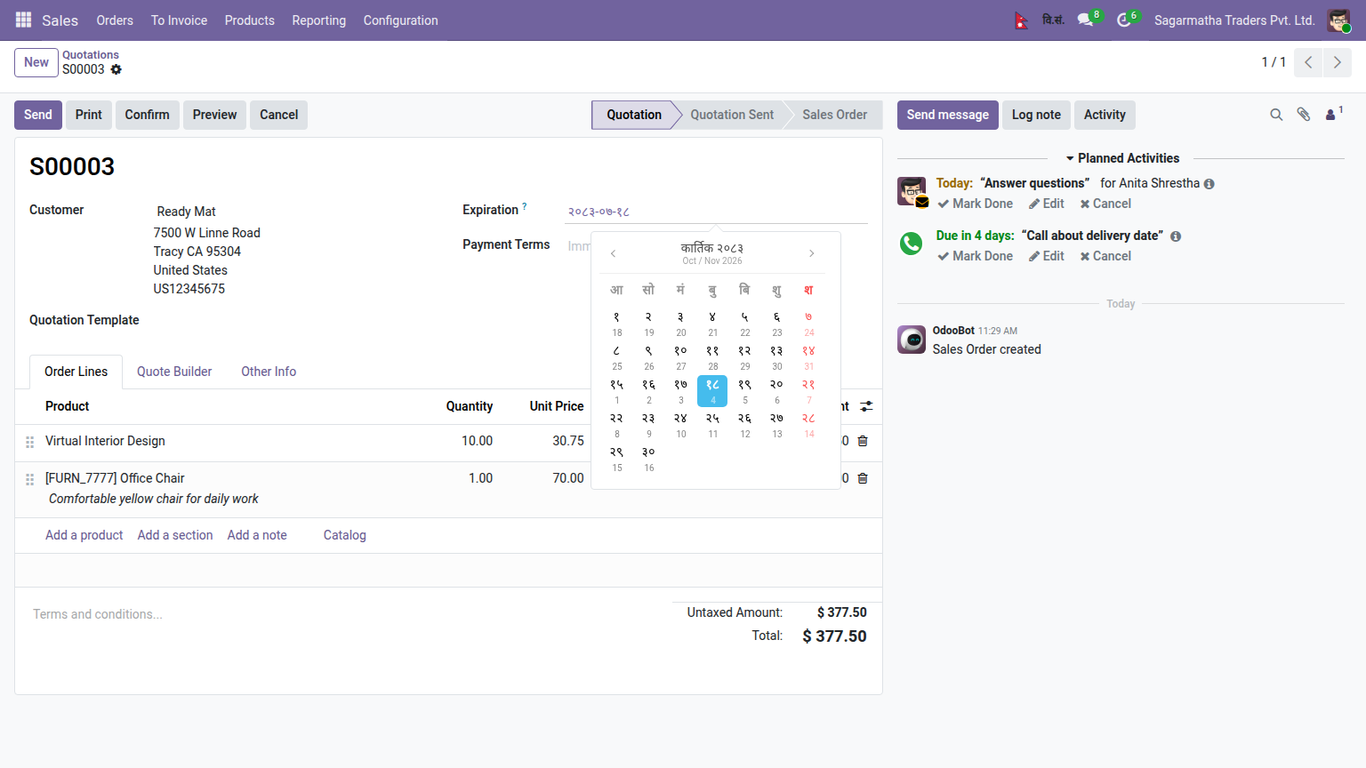
Every date and datetime field opens a Bikram Sambat calendar with Devanagari digits, Saturdays in red and the AD day in small print under each BS day.
Date and time together
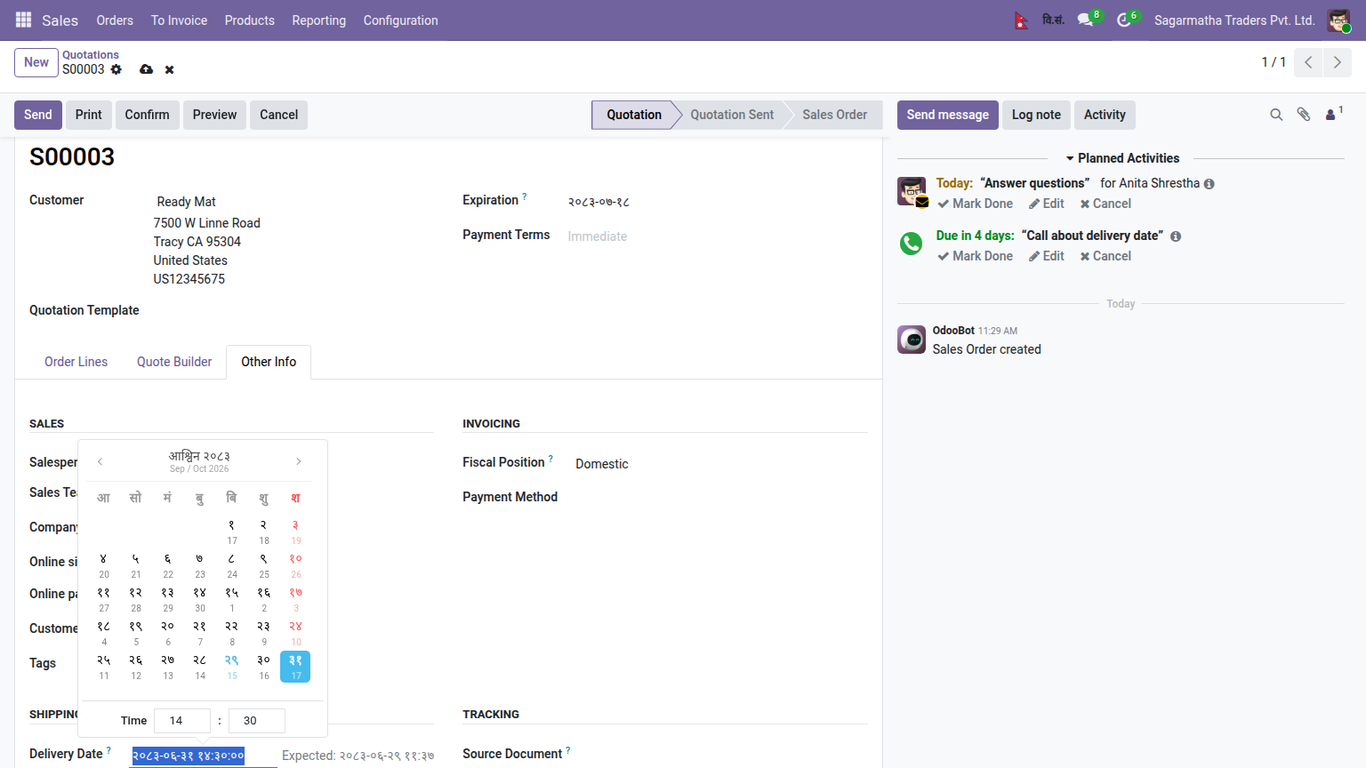
Datetime fields get hour and minute boxes under the calendar. The value is saved in the user's time zone like any Odoo datetime.
BS in lists, forms and kanban
Order dates, due dates, deadlines and every other date column show २०८२-०१-०१ style dates. You can also type a BS date in Devanagari digits.
Chatter, tracking and activities
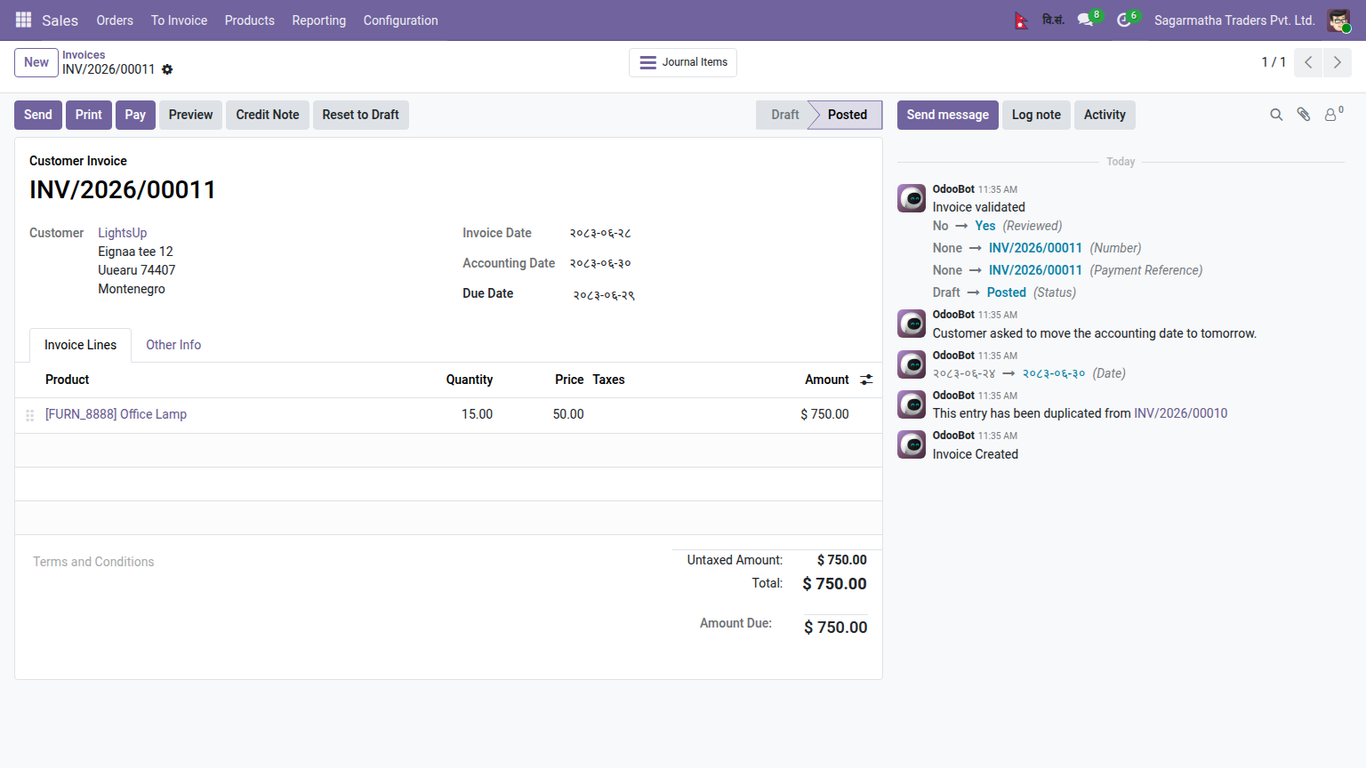
Message dates, tracked date changes such as "२०८३-०६-२४ → २०८३-०६-३०" and activity due dates follow the same calendar.
Group by day and graph labels
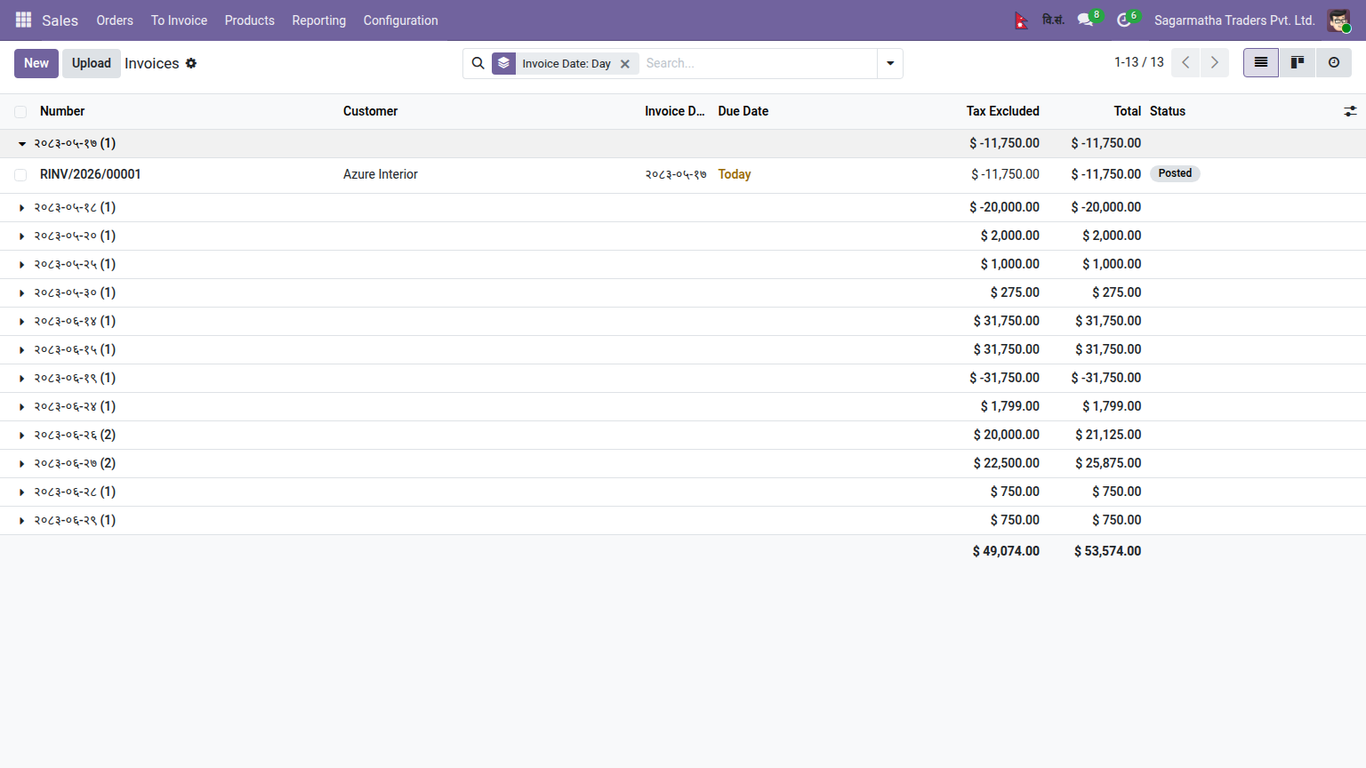
Group-by-day headers in lists and the day labels on graph axes are converted to BS too.
PDF reports in BS
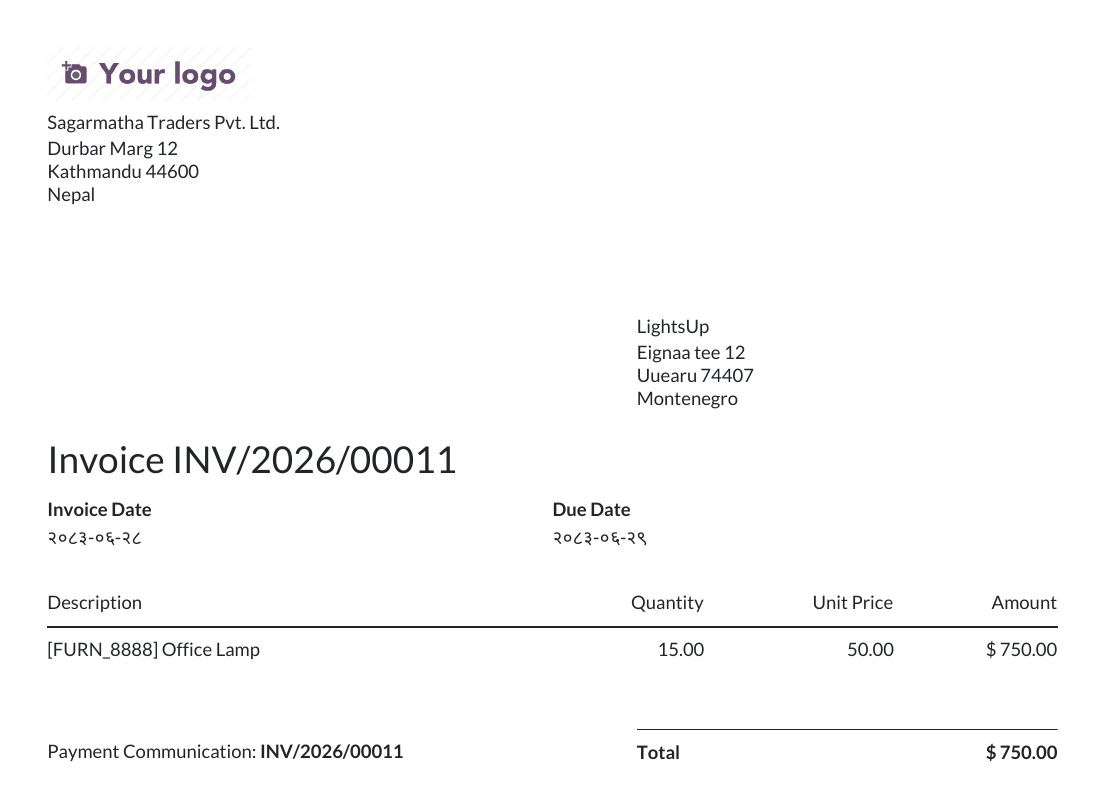
Invoices, quotations, delivery slips and every other QWeb report print BS dates, converted on the server in the right time zone.
Per-user BS or AD
Company default in Settings, a personal choice in My Preferences, and a one-click BS / AD switch in the top bar.
Nepal app launcher
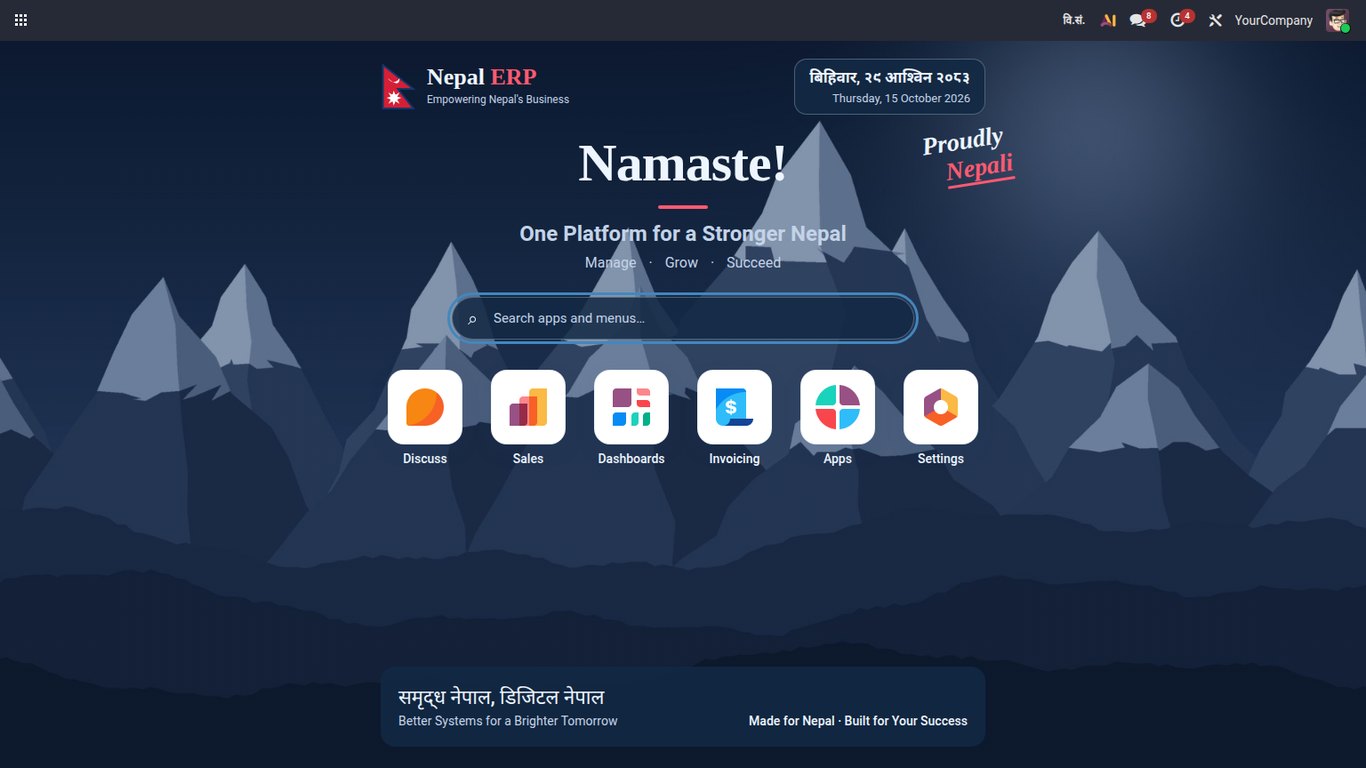
App tiles over Himalayan scenery, a welcome header, the Nepal flag, today's date in BS and a search over all apps and menus.
Light and dark
The launcher has a night version that follows Odoo dark mode. On Enterprise the home menu gets the same Himalayan backdrop.
Odoo keeps storing AD
Only the display changes. Database values, imports, exports, the API and other apps keep working with Gregorian dates.
No Python library to install
BS and AD conversion is built in from the official month-length table, so it installs on any server and on Odoo.sh.
Nepali translation included
Interface texts ship in Nepali, English, Arabic, Spanish, French and German.
How it compares
| Feature | This app | Typical alternatives |
|---|---|---|
| BS date picker on every date field | Yes | Yes |
| AD day shown inside the BS calendar | Yes | Some |
| Datetime fields with hour and minute | Yes | Some |
| BS dates in chatter, tracking and activities | Yes | Partly |
| Group-by-day and graph labels in BS | Yes | Rarely |
| PDF reports in BS | Yes | Yes |
| Per-user BS / AD with top bar switch | Yes | Some |
| No pip package to install | Yes | Often not |
| Nepal app launcher with search | Yes | No |
| Launcher as landing screen after login | Yes | No |
| Dark mode and Enterprise home menu styling | Yes | No |
| Nepali interface translation | Yes | Rarely |
How it works
Odoo stores AD. The app converts every date to BS when it is shown and back to AD when you pick or type one.
Shown in BS
Lists, forms, chatter, activities, group labels and reports display the BS date.
Picked in BS
The Nepali calendar returns the matching AD date to Odoo.
Stored in AD
The database, imports, the API and other apps keep using AD.
Workflow walkthrough
From the settings to a printed invoice, step by step.
Switch it on in Settings
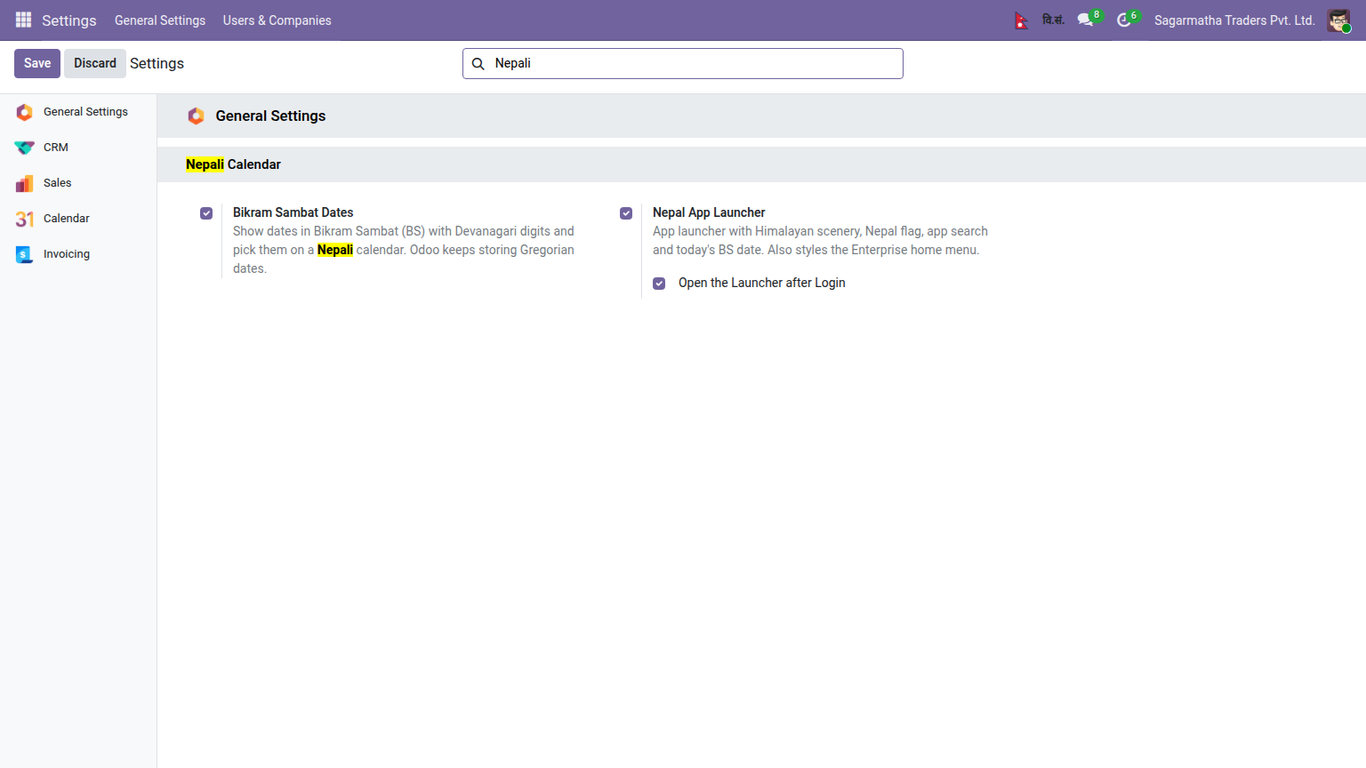
Settings > General Settings > Nepali Calendar. Bikram Sambat dates and the Nepal app launcher are on after install and can be switched off separately, so you can use only the calendar.
Land on the Nepal launcher
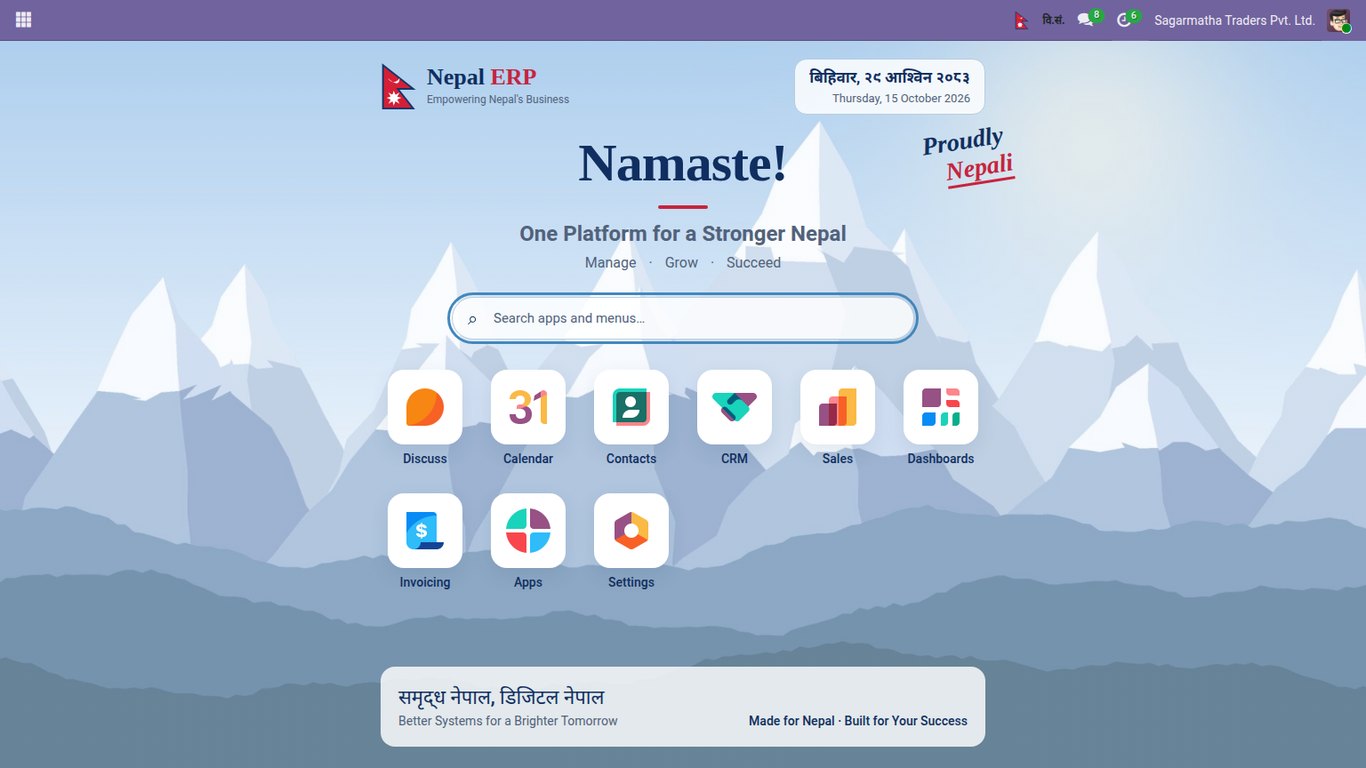
After login users see their apps over a Himalayan backdrop, with today's date in BS and AD. "Open the Launcher after Login" can be unticked to keep Odoo's usual first app.
Find any app or menu
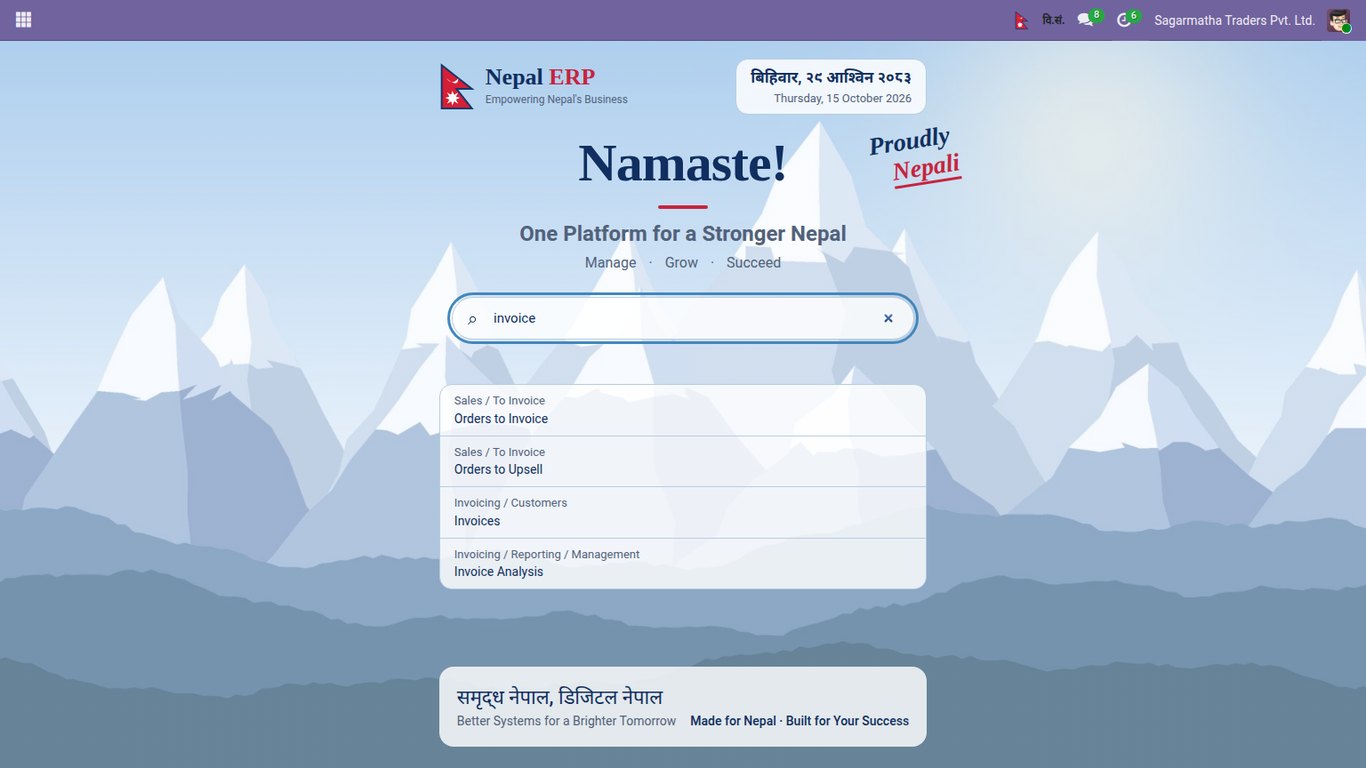
Type a few letters: matching apps stay on screen and menus are listed with their path. Enter opens the first result. The flag button in the top bar brings the launcher back from anywhere.
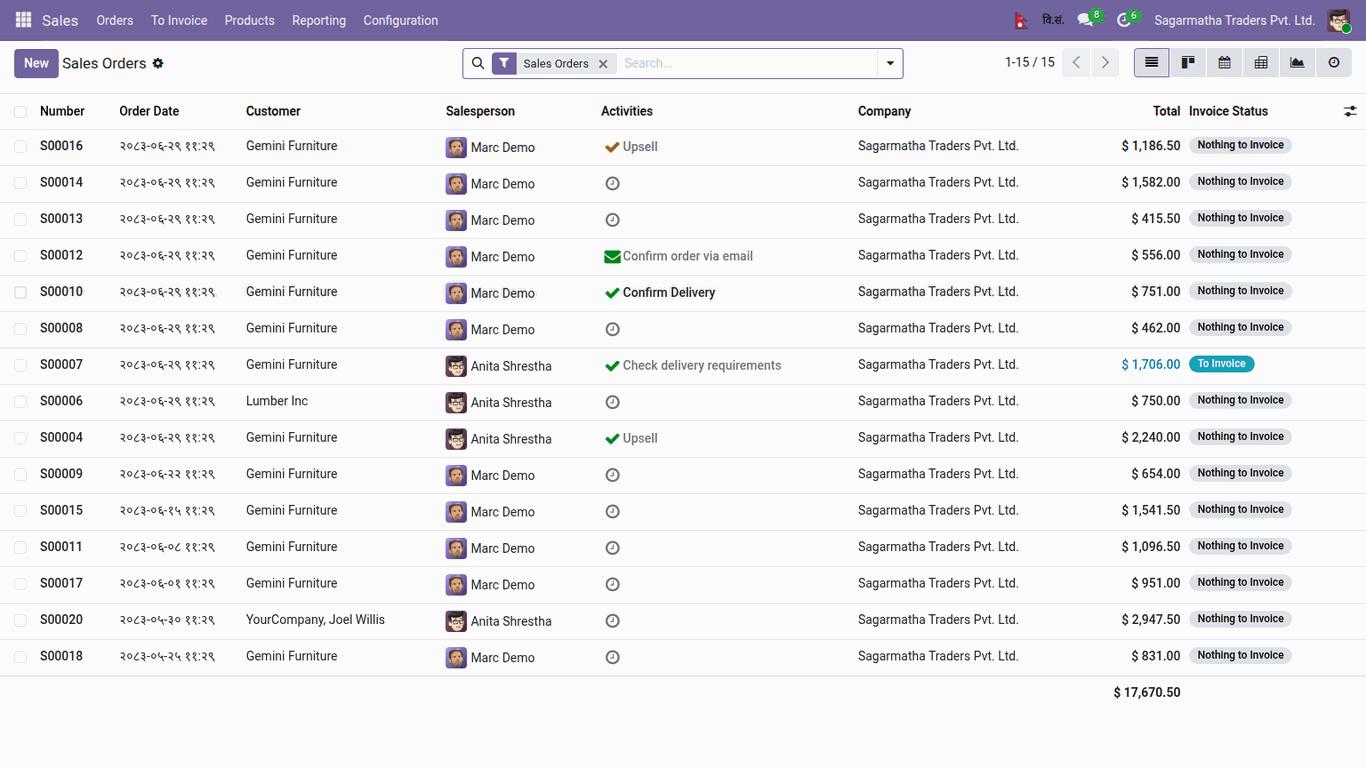
Lists show BS dates
Every date column, here the order date of sales orders, is shown in Bikram Sambat with Devanagari digits. Sorting and filters still use the real date.
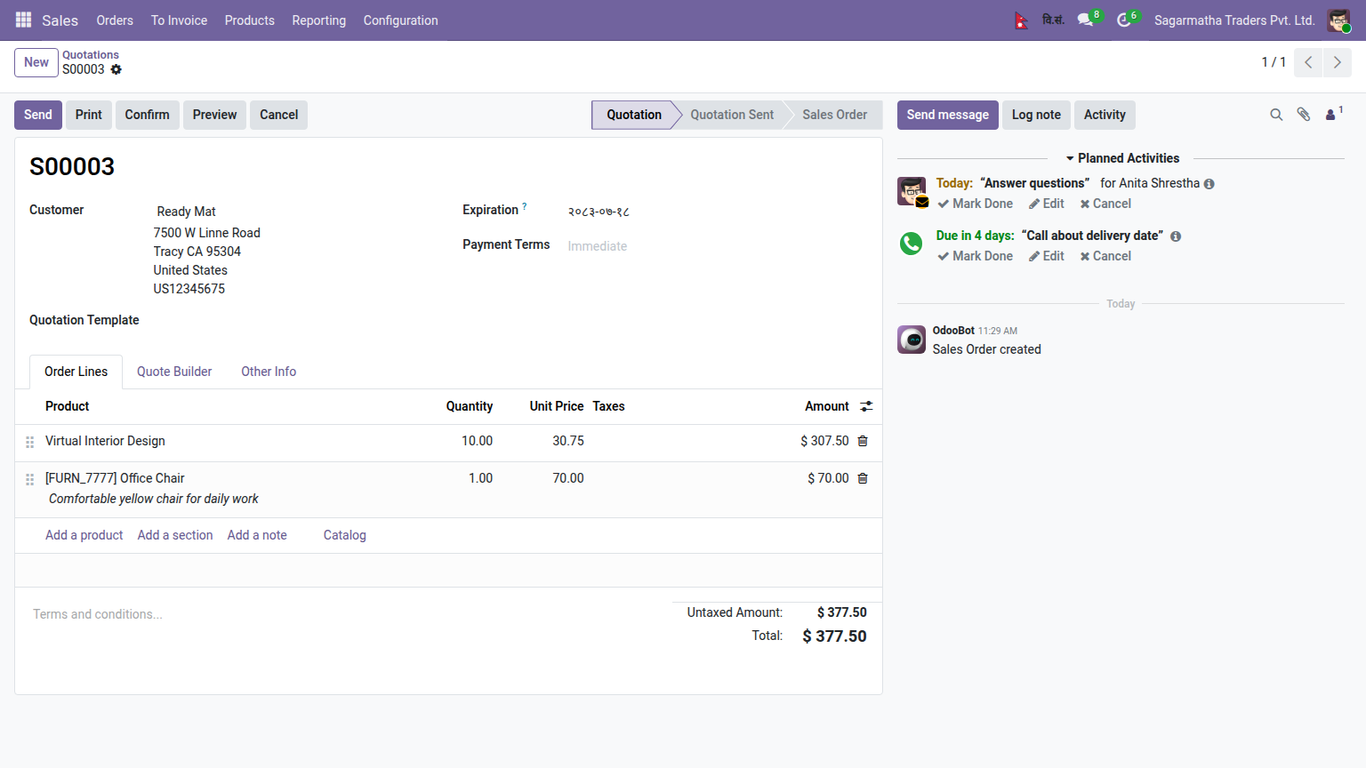
Forms show BS dates
Read-only and editable date fields in forms show the BS date. Nothing changes in the database: Odoo still stores the Gregorian date.
Pick a date on the Nepali calendar
Clicking a date field opens a BS month with the AD day under each day. Pick a day and the field is filled; Odoo saves the matching AD date.
Date and time
Datetime fields get hour and minute boxes under the calendar. Here the delivery date of a quotation is set to 31 Ashwin at 14:30.
Chatter and tracked changes
Tracked date changes in the chatter show the old and new BS date, so the history reads the same way as the form.
Activities
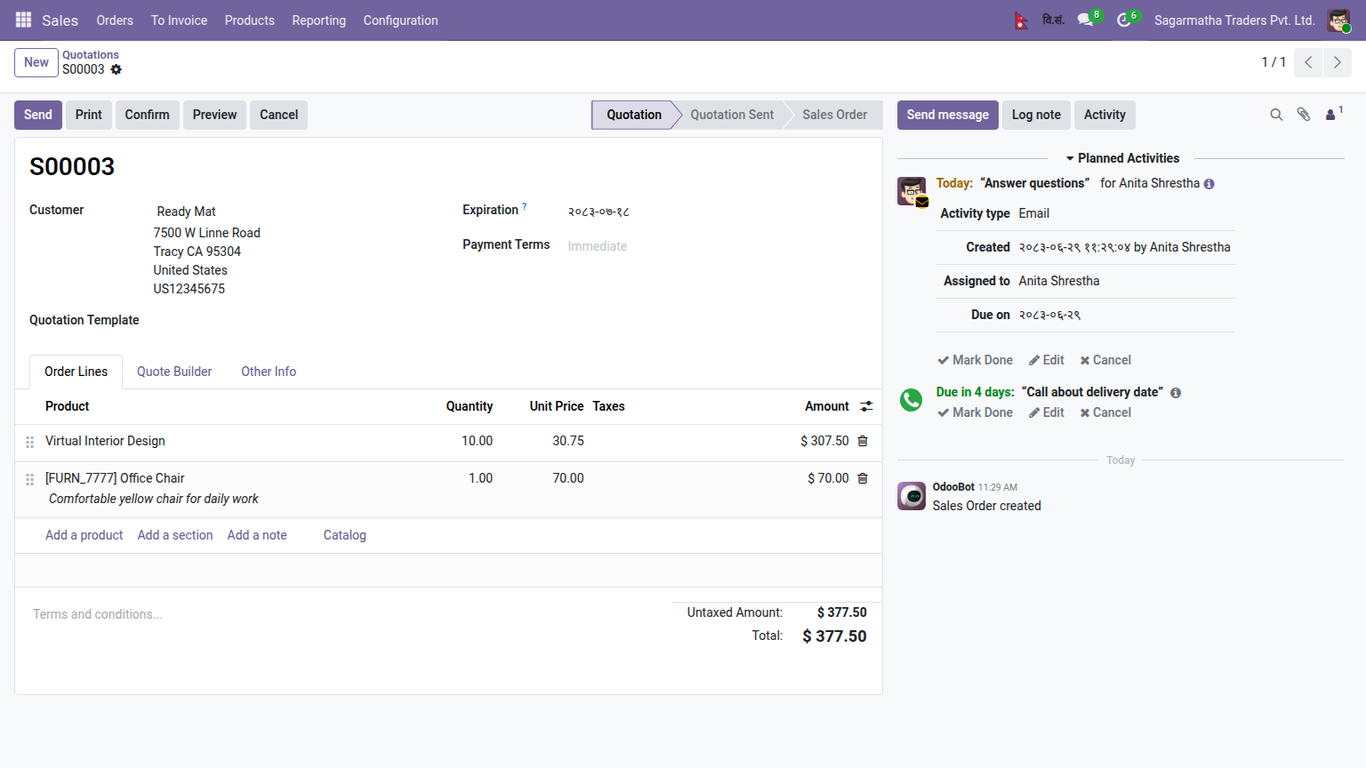
Activity details show the creation date and the due date in BS.
Group by day
Grouping a list by day shows BS dates in the group headers. Month and year groups keep their AD names because an AD month spans two BS months.
PDF reports
Invoices and every other QWeb report print BS dates, converted on the server in the user's time zone.
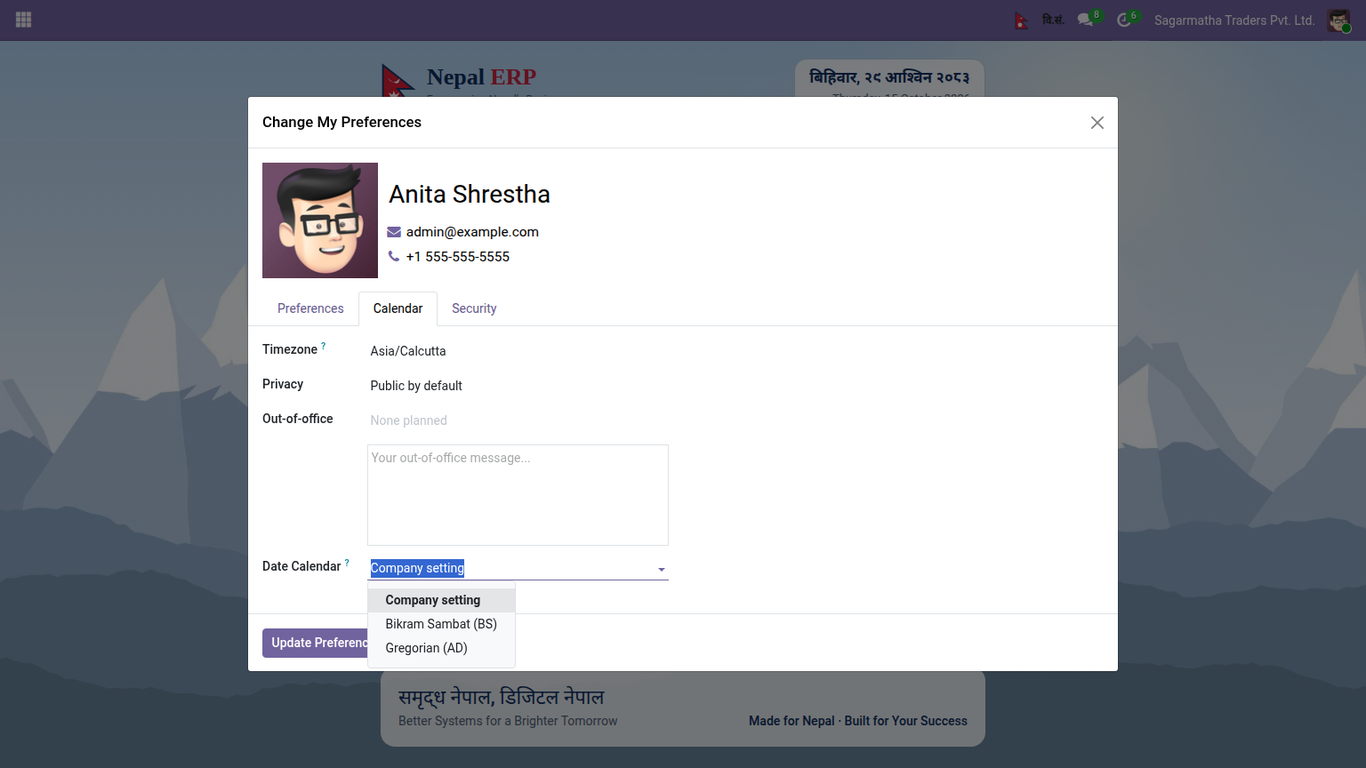
Each user chooses BS or AD
In My Preferences > Calendar a user can follow the company setting, always use BS or always use AD.
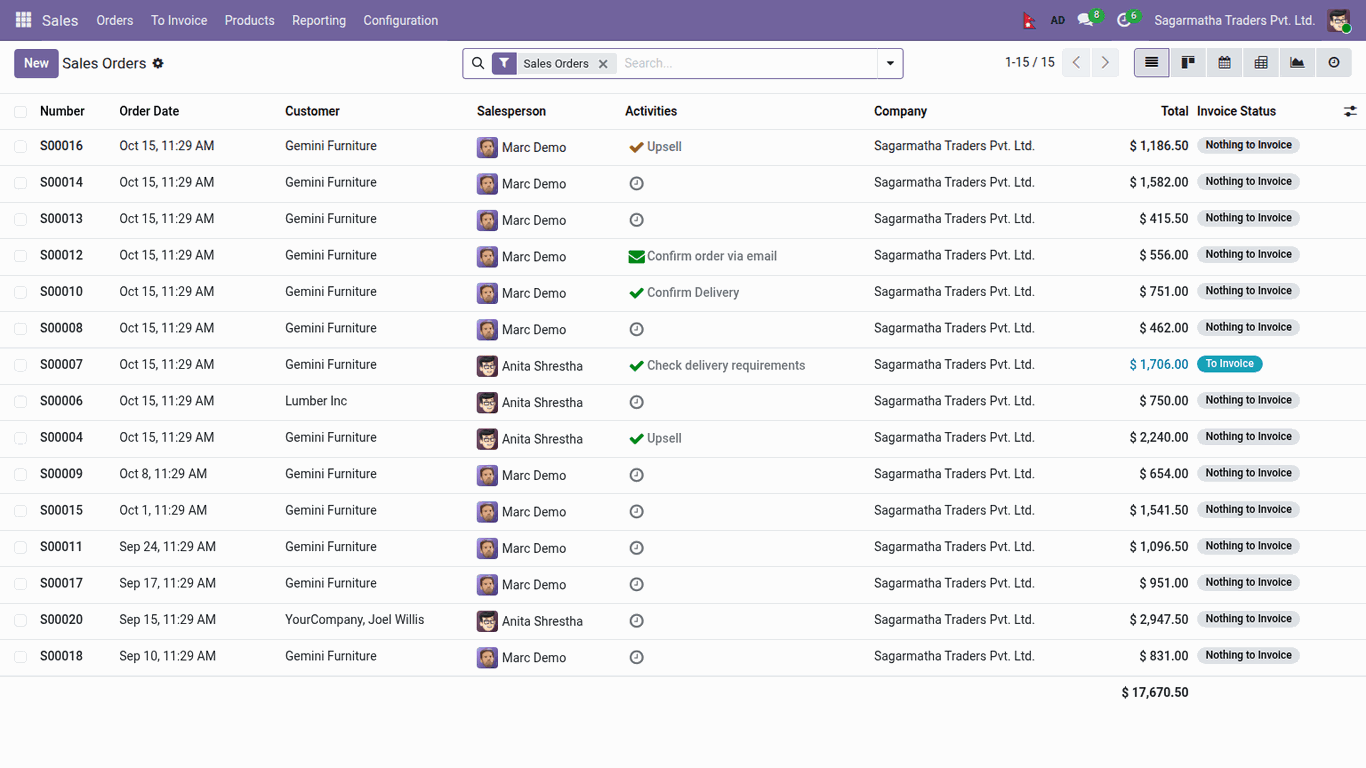
One click back to AD
The वि.सं. / AD button in the top bar switches the current user between BS and AD and reloads the page. Here the same list in AD.
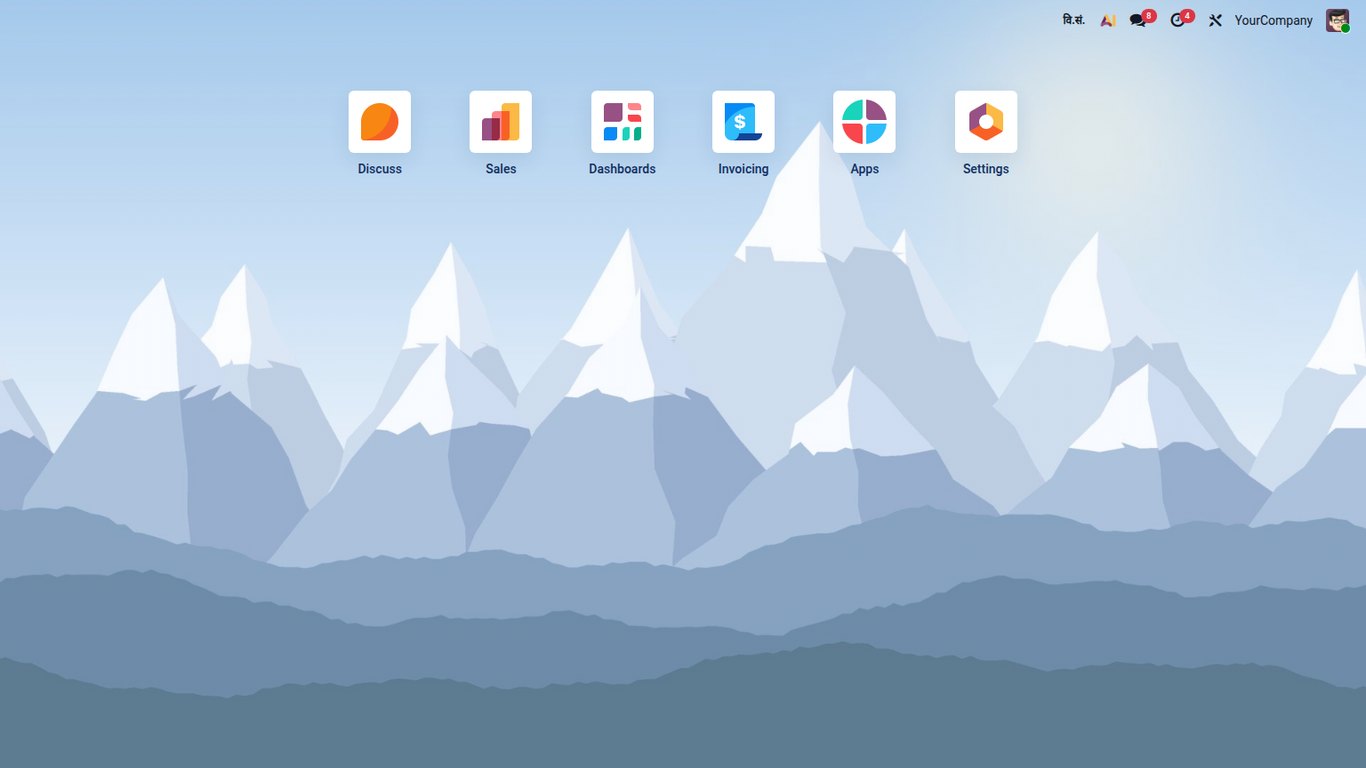
Enterprise home menu
With Enterprise the standard home menu stays the landing screen and gets the Himalayan backdrop and white app tiles.
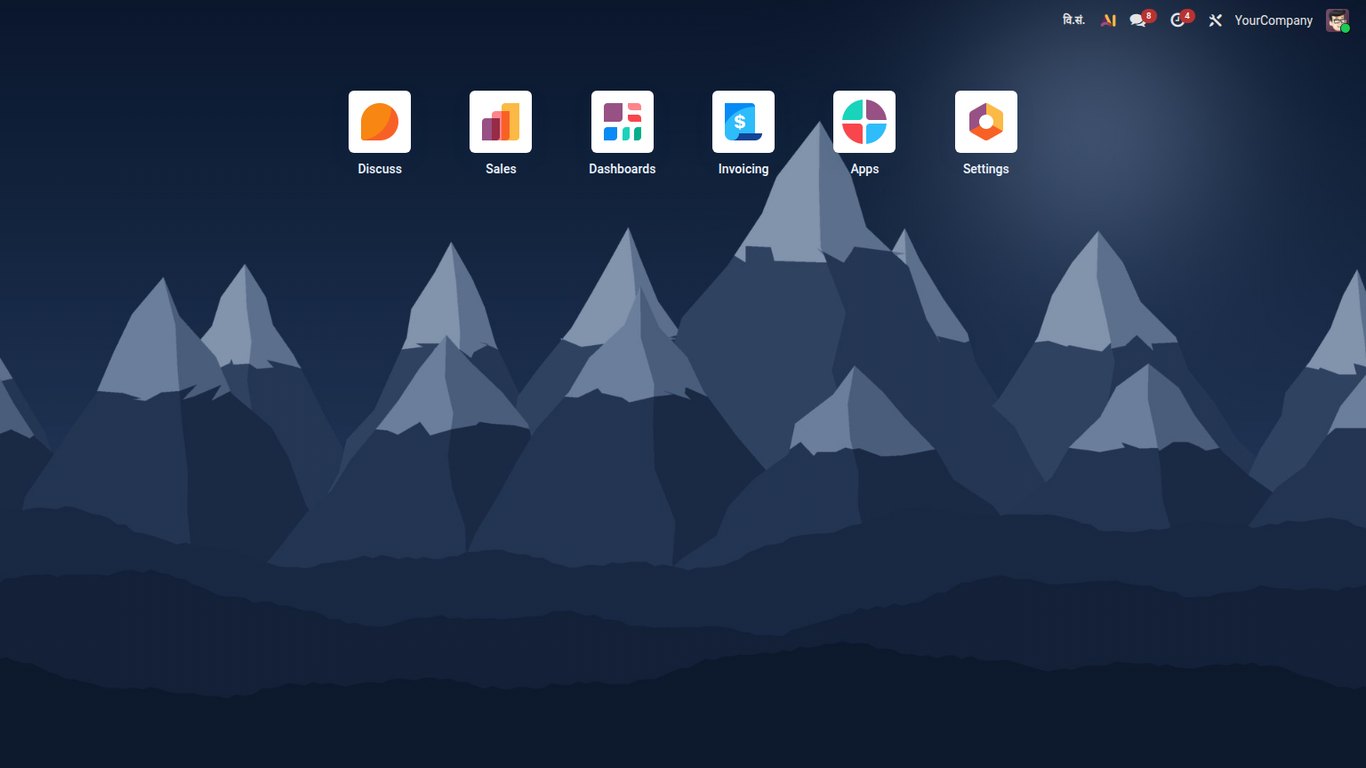
Dark mode on Enterprise
When a user switches Enterprise to dark mode the backdrop changes to the night version.
Dark launcher
The Nepal launcher follows dark mode as well, with a night palette for the header, search and footer.
Setup in 5 steps
Install
Install the app. No Python package is needed.
Check Settings
Settings > General Settings > Nepali Calendar: BS dates, launcher, and launcher after login.
Reload
Reload the browser so the new date display is used.
Tell your users
Each user can pick BS or AD in My Preferences, or with the top bar switch.
Print an invoice or quotation: dates come out in BS.
Questions
Does it change the dates stored in the database?
No. Odoo keeps storing Gregorian (AD) dates. The app only changes how dates are shown and picked, so reports, imports, exports, integrations and upgrades keep working.
Which dates are supported?
From 17 Poush 2000 BS (1 January 1944 AD) to the end of 2100 BS (April 2044 AD). Dates outside that range are shown in AD.
Do I need to install a Python library?
No. The BS and AD conversion is built in from the same month-length table the date picker uses, and both are checked against each other for every day of the range.
Why do month filters still say October?
Search filters, month groups and calendar titles describe Gregorian months, and an AD month covers parts of two BS months. Showing a BS month name there would be wrong, so they stay in AD; every individual date is shown in BS.
Can some users keep AD dates?
Yes. The company setting is the default; each user can choose BS or AD in My Preferences or with the top bar button.
Can I use only the calendar, without the launcher?
Yes. Untick Nepal App Launcher in Settings and the launcher, its top bar button and the Enterprise styling are switched off.
Does it work with Enterprise?
Yes. Dates work the same way. The Enterprise home menu stays the landing screen and gets the Himalayan backdrop, white tiles and a dark version; the welcome header and search are part of the Community launcher.
Is the date picker library open source?
The calendar popup uses nepali.datepicker by Sajan Maharjan under the MIT license; the license file is included in the app.
Where does the mountain picture come from?
The Himalayan backdrop is our own drawing made for this app, in a light and a dark version.
Need a hand?
Questions about dates, reports or the launcher? Write to us and Viyug Infotech will get back to you.
Email support: support@viyuginfotech.com
Website: viyuginfotech.com
Live demo: nepali-demo.viyuginfotech.com
Release notes
Initial release
- Bikram Sambat date picker with time entry on every date and datetime field
- BS dates in lists, forms, chatter, tracking, activities, group labels, graphs and PDF reports
- Company setting, per-user BS / AD choice and top bar switch
- Built-in BS / AD conversion, no Python package
- Nepal app launcher with search, light and dark, Enterprise home menu styling
- Nepali, Arabic, Spanish, French and German translations